

Choosing a coding robot for a child feels exciting and a little uncertain. Robots promise problem solving, creativity, and real movement that turns code into cause and effect. The tricky part is finding one that fits your child today and still feels fresh months from now.
What matters is not the flashiest lights. It is the match between the robot’s learning path and your child’s age, reading level, patience, and device access. A good match builds confidence fast. A poor match gathers dust.
We look at concrete factors. Age band and reading readiness. Device compatibility across iPad, Android, Chromebook, or laptop. Coding path from screen‑free tiles to block coding to text. Sensors and movement that enable real challenges. Durability and parts you can replace. Setup time and the quality of lesson content.
There are limits to know up front. Screen‑free bots are welcoming, but some kids outgrow them quickly. Advanced kits can be amazing, but they often expect typing skills and more adult help than the box suggests.
Do this first. On a sticky note, write your child’s age, reading level, favorite themes, and the device you actually own. Add where they will play, like carpet or hard floor, and how much time you can help each week. Keep it nearby as we go. It will keep your choice grounded.
Start here: how to use this guide and what you’ll get
What we compare and why it matters
We evaluate robots on:
- Learning path: screen‑free, block coding, or text. We check if there is a clear way to advance.
- Device fit: iOS, Android, Chromebook, Windows, macOS. We note known app limits and Bluetooth quirks.
- Sensors and movement: line, color, distance, gyro, and wheel quality. These shape what projects are possible.
- Build and durability: prebuilt vs build‑it, spare parts, and how well it survives kid energy.
- Setup and support: average first setup time, tutorials, lesson plans, and community projects.
- Battery life and charging: swappable batteries or built‑in, charge time, and classroom viability.
Who this guide is for
- Parents picking a first robot for ages 4 to 12.
- Caregivers and tutors who want a weekend learning project that sticks.
- Teachers or club leaders who need reliable gear and repeatable lessons.
- Gift givers who want a win that is fun on day one and still useful later.
How to scan our picks fast
We group robots by age and learning path first, then by skills and build style. Each pick includes what it teaches in week one, how it grows in month three, device notes, and the kind of projects it shines at. If you only have one device or a tight setup window, skim our setup notes before anything else.
A practical decision framework for choosing
Age and reading readiness
- Ages 4 to 6 often thrive with screen‑free or icon‑only apps. Reading is optional. Clear feedback and quick wins matter most.
- Ages 7 to 9 can handle block coding with short words and simple loops. They benefit from clear challenges and visible progress.
- Ages 10 to 12 are ready for variables, sensors, and multi‑step projects. Some are eager for Python or JavaScript, while others prefer deeper block coding first.
Tip: If reading is still shaky, pick a robot with strong audio prompts or physical coding tiles. It reduces frustration and keeps focus on logic.
Devices, setup, and connectivity
- Check your exact device model and OS version before you buy. Some apps lag on older tablets. Chromebook support varies.
- Bluetooth can be the surprise bottleneck. School iPads sometimes block pairing. Busy living rooms can cause drops near TVs and consoles.
- If you need zero‑drama setup on day one, favor robots with on‑board buttons or cards for the first session. Add the app on day two.
Micro‑step: Install the companion app now on your device. If it opens and runs a demo, you are in good shape.
Learning path and room to grow
- Look for a clear ladder: tiles or arrows, then blocks, then optional text. Extra sensors help unlock that path.
- Expansion matters more than features on the box. Extra mats, missions, or add‑on kits extend interest without new hardware.
- Watch for closed ecosystems that stall. If a robot cannot export or connect to a common coding tool, growth may cap early.
Edge case: A feature‑rich robot with a single, fixed app can feel amazing at first but may lack deeper challenges later.
Sensors, build, and play environment
- Line and color sensors are great for map‑based challenges. They need good contrast and a flat, light surface.
- Distance sensors support obstacle avoidance. They shine in open floors. Thick carpet or rugs can trip small wheels.
- Build‑it kits teach engineering but expect adult help for the first build and the first fix. Prebuilt bots start faster.
Quick check: Look at your floor. If it is mostly carpet, pick bigger wheels or plan a poster board play area.
Support, content, and classroom fit
- Strong lesson libraries save time and keep momentum. Look for week‑by‑week projects, not just a manual.
- Short, replayable challenges beat a single long campaign. Kids need quick wins and room to tinker.
- For groups, favor USB charging hubs, clear teacher dashboards, and reset buttons that work every time.
If you lead a club, test one robot with your full Wi‑Fi and device setup before rolling out to the whole group.
Quick Comparison
| Product | Best for | Biggest strength | Biggest trade-off |
|---|---|---|---|
| Makeblock mBot Robot Kit for Kids – Build and code with Scratch & Arduino (4 projects) | Kids 8–12 starting with Scratch and curious about Arduino. | Dual coding paths with a simple build. | Only 4 guided projects included. |
| Botley Coding Robot: Screen-Free Coding Fun for Kids 5+ | Early learners who need screen-free play. | No app setup and very approachable. | Lacks more advanced coding concepts. |
| Botley Coding Robot Kit – Screen-Free Coding for Ages 5+ | Families wanting a fuller screen-free starter kit. | Ready to go with screen-free cards. | Kids may outgrow it quickly. |
| Wonder Workshop Dash – Voice-Activated Coding Robot for Kids 6+ | Kids 6+ who love interactive, voice features. | Fun voice interactions and engaging activities. | Requires a compatible device. |
| Snap Circuits Teach Tech Mech-5 Screen-Free Coding Robot Kit | Hands-on tinkerers who like mechanical builds. | Shows clear cause and effect through mechanical steps. | Movements are limited compared to app robots. |
| Thames & Kosmos Junior Robotics Kit – Screen‑Free Coding for Kids | Young builders exploring basic robotics logic. | Screen-free activities with tangible parts. | Less depth for older kids. |
| Thames & Kosmos My Robotic Pet: Coding Chameleon – Screen‑Free Color‑Sensing Robot Kit (Ages 8+) | Creative kids who enjoy themed builds. | Color-sensing play keeps it novel. | Theme is niche and less expandable. |
| Makeblock mBot2 Coding Robot Kit — AI learning support with Scratch & Python for kids 8+ | Tweens ready for Scratch to Python progression. | AI learning support and two coding languages. | Higher learning curve and needs a device. |
| Botley 2.0 Screen‑Free Coding Robot Kit (Ages 5+) | Early elementary kids needing screen-free progression. | Playful screen-free challenges with simple setup. | Limited depth beyond basics. |
| Makeblock mBot Robot Kit: Kids 8–12 Learn Coding with Scratch and Arduino | Kids 8–12 who want to bridge Scratch and Arduino. | Solid path from block to text coding. | Requires a computer and assembly time. |
| ELEGOO UNO R3 Robot Car Kit for Learning Arduino Coding | Older kids who want hands-on Arduino and electronics. | Real Arduino experience with hands-on wiring. | Steeper build and debugging curve. |
| Educational Insights PYXEL Kids Coding Robot with Blockly and Python | Kids ready to move from blocks to Python. | Supports Blockly and Python in one bot. | Needs device setup and guidance at first. |
1. Makeblock mBot Robot Kit for Kids – Build and code with Scratch & Arduino (4 projects)
Best Recommended Starter Pick

Spark your child’s creativity with the mBot robotics kit! Easy to build, fun coding projects, and interactive tutorials make learning a blast. Start their coding journey today!
$64.40 on Amazon
Price and availability are accurate as of 03/29/2026 06:22 am GMT and are subject to change.
If you want a first robot that balances building and coding without overwhelm, this is a strong pick. It suits beginners who learn best with clear steps and quick wins, and it works well for families or educators who need something approachable for mixed skill levels. Think of it as a gentle on-ramp rather than a pro toolkit.
It nails the basics we care about: a straightforward build, visual coding with Scratch, and a clear path to Arduino when your learner is ready. The interactive tutorials and the 4 included projects create momentum in week one, which matters a lot for confidence.
The trade-offs are about depth. It is not designed for advanced tinkering right out of the box, and the jump from blocks to Arduino takes patience and guidance. Plan on a little adult support during the first setup to keep frustration low.
If you care most about early success, stick to the tutorials and complete the 4 projects in order. If long-term growth is the goal, map a next step: once your child is comfortable in Scratch, pick one favorite project and rebuild it in Arduino to stretch their skills.
2. Botley Coding Robot: Screen-Free Coding Fun for Kids 5+
Best screen-free pick 5–7
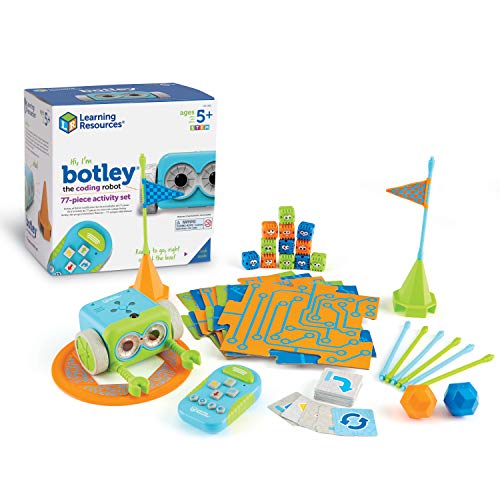
Botley makes learning coding a blast! Perfect for young minds, this screen-free robot boosts STEM skills through fun, interactive play. Ready to roll?
$64.02 on Amazon
Price and availability are accurate as of 03/28/2026 01:38 pm GMT and are subject to change.
If you want a true first step into coding for ages 5 and up, this is a gentle, screen-free start. It fits families who prefer hands-on play, after-school programs with short sessions, and classrooms that rotate small groups. The learning curve is kind, and the setup stays low-friction. Kids plan a simple sequence, test it, then tweak and try again. Ready to roll?
It nails our early-learner criteria: simple to operate, fast feedback, and play that feels like a game. We like it as a confidence builder because wins come quickly and mistakes are easy to fix. It is also a good match for parents who want structure without needing an app or a lot of prep.
The trade-off is headroom. Compared with app-driven robots or build-it-yourself kits, there is less long-term complexity. Older siblings may want more challenge after a while, and the first week usually goes best with a nearby adult to frame goals and celebrate small wins.
If you care most about screen-free habits, short sessions, and playful logic, choose this. If your kid is already asking for typed code or complex projects, consider an app-based path instead and keep this as a warm-up.
3. Botley Coding Robot Kit – Screen-Free Coding for Ages 5+
Best Beginner Robot

Spark your child’s creativity with Botley! A screen-free coding robot that makes learning STEM skills fun and interactive. Perfect for young problem solvers.
$47.59 on Amazon
Price and availability are accurate as of 03/28/2026 03:25 pm GMT and are subject to change.
If you want a true starter robot for ages 5 and up, this is the easy on-ramp. It fits families who want an unplugged path into STEM and simple, hands-on logic without adding more screen time. It is especially nice for early readers and kids who like to tinker in short bursts.
In our framework, it nails the quick win. Setup is simple, feedback is immediate, and kids get a clear cause-and-effect loop that builds confidence. It also checks the box for family-friendly learning: siblings can take turns giving instructions, predicting outcomes, and debugging together.
The trade-off is depth. As kids grow, they may outpace what a purely screen-free, beginner-focused robot can offer. There are no app-based extensions, so older learners looking for complex challenges may want more.
If you care most about a calm, screen-free start that teaches sequencing and problem solving, choose this. If your child tends to race ahead and craves bigger projects, plan to step up to a more advanced, app-enabled robot later.
4. Wonder Workshop Dash – Voice-Activated Coding Robot for Kids 6+
Best Engaging starter bot

Ready-to-play Dash helps kids 6–11 learn coding (classroom-proven) as it sings, dances, dodges obstacles, and takes voice commands via friendly apps. Curious to see more?
$189.99 on Amazon
Price and availability are accurate as of 03/28/2026 02:06 pm GMT and are subject to change.
If you want a smooth first step into coding for kids 6 to 11, this ready-to-play robot fits the bill. It hooks beginners with voice commands and playful feedback as it sings, dances, and avoids obstacles. We like it for homes, clubs, and classrooms that need something friendly and effective without a long setup.
Against our buying criteria, it nails ease of use, engagement, and age fit. The quick start means kids can go from curiosity to their first program in minutes. Classroom-proven tools and activities support steady progress, and the clear cause-and-effect of movement and music helps new coders grasp logic and sequencing.
There are trade-offs. Since it is app-driven, you will need a compatible device. It is not a build-your-own kit, so hardware tinkering is limited. And while it scales within the beginner range, older tweens who want deep customization may want something more open-ended.
If you care most about motivation and early success, pick this and lean on the voice commands and starter challenges. If your priority is hands-on building or advanced customization, consider a more tinker-focused option elsewhere in this guide.
5. Snap Circuits Teach Tech Mech-5 Screen-Free Coding Robot Kit
Best Great screen-free build
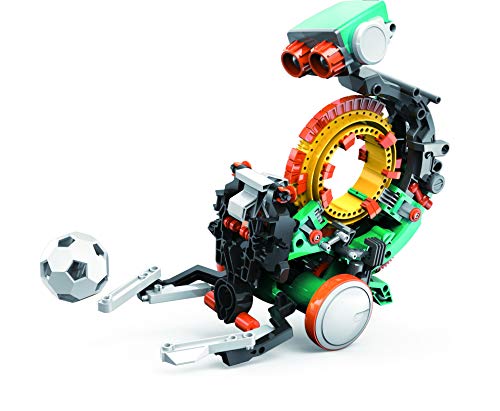
Build, code, and watch Mech-5 come to life! Perfect for young aspiring engineers, this unique robot throws, kicks, and draws. Ideal for ages 10+.
$28.58 on Amazon
Price and availability are accurate as of 03/29/2026 07:29 am GMT and are subject to change.
If you want a screen-free project that feels like real engineering, this is a great fit. It is ideal for ages 10 and up, especially kids who like to tinker and see how parts work together. We like it for family build nights and STEM clubs where teamwork and patience are part of the fun.
It nails the hands-on criteria in our guide. Kids build, plan, and then watch physical sequences play out as the robot throws, kicks, or draws. That immediate, visible feedback is perfect for learning cause-and-effect, sequencing, and basic debugging. No device setup, no apps, just focused making.
The trade-off is time and temperament. This is not a quick toy. The build asks for careful steps and a willingness to test and tweak. It also leans into mechanical logic rather than on-screen languages. If you care most about hands-on engineering and clear, physical outcomes, pick this. If you want to practice coding in an app or move toward text-based skills, you may prefer an app-driven robot instead.
6. Thames & Kosmos Junior Robotics Kit – Screen‑Free Coding for Kids
Best Top screen-free pick

Build and code your own 9-inch robot! Perfect for kids 8+, it’s easy to program with blocks or buttons. Fun learning that sparks creativity and problem-solving.
$52.45 on Amazon
Price and availability are accurate as of 03/29/2026 10:33 am GMT and are subject to change.
If you’re shopping for a hands-on first robot for kids 8 and up, this kit hits a sweet spot. It’s designed for screen-free coding with simple button inputs, and it also supports a block-style approach when you want to level up. The 9-inch robot build gives kids something substantial to create, then immediately program, which makes the learning feel real.
From our buying guide lens, it nails early wins and low-friction setup. Kids can start with button-based programs to grasp sequencing, then move to blocks as their confidence grows. The build-to-code loop is tight, so problem-solving and creativity show up fast.
The trade-offs are mostly about depth and expandability. This is not a teen-level platform with complex features, and it won’t offer the long-term modular growth of larger ecosystems. The build requires a bit of patience, so younger or restless learners may need short sessions.
If you care most about screen-free coding and a rewarding build that gets kids thinking right away, choose this. If your goal is advanced programming depth or years of add-ons, plan to step up later once the basics are solid.
7. Thames & Kosmos My Robotic Pet: Coding Chameleon – Screen‑Free Color‑Sensing Robot Kit (Ages 8+)
Best screen-free pick

Build a color-changing chameleon robot that codes with action cards—no screens. It senses gestures, matches its surroundings, and plays in Pet or Wild modes.
$37.99 on Amazon
Price and availability are accurate as of 03/28/2026 04:31 pm GMT and are subject to change.
If you want zero screens and lots of hands-on play, this chameleon is a sweet spot for ages 8 and up. Kids build it, then “code” behaviors with action cards, so they learn sequencing without needing an app. It works well for families who prefer tangible parts over tablets, and for learners who respond to immediate, physical feedback.
From our buying guide criteria, it nails screen-free engagement, quick wins, and playful learning. The color-sensing trick is a crowd-pleaser, and the gesture response plus Pet and Wild modes keep sessions feeling fresh. Because you assemble it first, kids also see how gears and sensors connect to behavior, which deepens understanding.
The trade-off is depth. Card-based programs are fun but not as expandable as app-based robots. Expect environment needs too: color sensing works best with bold colors and decent light. If you care most about open-ended coding and long-term progression, pick an app-based robot later in your journey. If you care most about device-free play and immediate, creative interaction, this is an easy win.
Tip: set up a simple play mat with clear color zones so the chameleon can reliably detect and react. That small tweak turns casual play into a mini coding lab on your kitchen table.
8. Makeblock mBot2 Coding Robot Kit — AI learning support with Scratch & Python for kids 8+
Best AI ready starter kit

Turn play into AI learning: mBot2 sings, follows lines, avoids obstacles, and responds to voice. Build it in ~30 mins, code with Scratch/Python, and explore 8+ modes. Details?
$159.99 on Amazon
Price and availability are accurate as of 03/28/2026 01:59 pm GMT and are subject to change.
If you’re buying for an 8 to 12 year old who wants a real robot that does more than roll around, this kit hits a sweet spot. It’s approachable for beginners thanks to Scratch, yet it has a clear path to Python when they’re ready. The build is quick, so kids see a win on day one, and there’s enough depth for months of exploration.
From our buying criteria, it shines on progression and real-world behavior. You get quick assembly, block-to-text coding, and hands-on modes that feel like robotics: following lines, avoiding obstacles, and reacting to voice. The playful side matters too. It can sing and run set routines, which keeps practice sessions fun. With 8+ modes to explore, there’s always a next thing to try.
Trade-offs are mostly about expectations. It costs more than ultra-simple toys, and the first build may benefit from guidance. Voice response needs a clear environment and patience. Line following tends to work best on high-contrast tracks with decent lighting.
If price is a concern, check our STEM toy value hub for deals, bundles, and smart ways to save.
If you care most about quick wins, start with the line follow or obstacle avoidance modes. If your child is curious about AI, begin with a simple voice response project in Scratch. And if you’ve got an older or fast-moving learner, transition to Python early to stretch their problem-solving muscles.
9. Botley 2.0 Screen‑Free Coding Robot Kit (Ages 5+)
Best Screen-free starter pick

Unleash creativity with Botley 2.0! 16 fun transformations, screen-free coding, and engaging STEM adventures. Perfect for curious kids—explore more today!
$77.24 on Amazon
Price and availability are accurate as of 03/29/2026 12:44 pm GMT and are subject to change.
If you want to start coding without screens, this is the sweet spot for ages 5 and up. It keeps attention with quick wins and playful feedback, and it fits well in short after‑school sessions or a weekend tinker block. Families and classrooms that prefer unplugged learning will appreciate how simple it is to get moving without juggling apps.
Against our buying criteria, it nails the early foundations: sequencing, planning, and cause‑and‑effect. The 16 fun transformations keep it feeling new, which matters when we’re trying to build a habit. It also supports open‑ended STEM adventures, so kids can explore at their own pace without a steep learning curve.
The trade‑off is depth. Older kids may want more complexity over time, and app‑based kits can offer broader concepts and more customization. If you care most about screen‑free habits and an easy on‑ramp to coding, choose this. If you want a path into more advanced ideas, consider a kit that adds app coding as skills grow.
10. Makeblock mBot Robot Kit: Kids 8–12 Learn Coding with Scratch and Arduino
Best Quick Build, Grows Skills

Kickstart coding with mBot—build in ~15 minutes, learn Scratch to Arduino, then drive, line-follow, and avoid obstacles. Tons of lessons, apps, and LEGO-friendly add‑ons.
$57.24 on Amazon
Price and availability are accurate as of 03/28/2026 10:35 pm GMT and are subject to change.
If you want a first real robot for ages 8 to 12 that starts easy and can grow, this is a sweet spot. The build is quick, so we can get to coding on day one. Kids start with Scratch, then step up toward Arduino when they are ready. Out of the box they can drive, line-follow, and avoid obstacles, with lessons and apps to guide the way.
It nails the setup speed and learning path we look for. The sensors enable clear cause and effect, and the lessons keep momentum going. We also like that it plays well with LEGO-friendly add-ons, so we can expand projects without a full new kit.
The trade-off is depth. Line follow and obstacle modes are basic, and the jump to Arduino may need a bit of adult help. Older tweens who want advanced custom builds might top out on the Scratch layer. If you care most about quick wins and steady progress, pick this. If you want more building variety, plan to add LEGO-friendly parts early.
11. ELEGOO UNO R3 Robot Car Kit for Learning Arduino Coding
Best Arduino starter

Spark your child’s curiosity with the ELEGOO Smart Robot Car! Easy to assemble, control via phone, and perfect for hands-on learning in programming and robotics.
$55.98 on Amazon
Price and availability are accurate as of 03/28/2026 06:14 pm GMT and are subject to change.
If your kid is ready to move from drag-and-drop apps to real circuits and code, this kit hits a sweet spot. We like it for motivated beginners and tinkerers who enjoy building as much as driving. It shines for weekend projects, homeschool labs, and STEM clubs where hands-on practice matters.
From our buying criteria, it scores on learn-by-doing, clear progression, and real feedback. Assembly is approachable, and phone control makes testing the car feel rewarding fast. That tight loop between build, code, and movement is exactly what helps concepts stick.
The trade-offs are the usual ones for kits. Expect a bit of trial and error and some adult backup during the first build. You also need a compatible phone or tablet for control, and the open-ended path means you should plan a few mini-missions to guide progress.
If you care most about real-world skills, pick this. Start with a simple goal like forward, turn, stop, then layer in small challenges across the week. If you want zero setup and instant play, look for a prebuilt robot instead.
12. Educational Insights PYXEL Kids Coding Robot with Blockly and Python
Best App-free coding

Meet Pyxel: a kid-friendly coding robot that teaches Blockly and Python—no app or internet needed. Connect, code, and see lights, sounds, and tricks. Secure STEM fun.
$79.16 on Amazon
Price and availability are accurate as of 03/29/2026 03:38 am GMT and are subject to change.
If your learner is ready to grow from drag and drop blocks into real text coding, this is a strong fit. Educational Insights Pyxel focuses on Blockly and Python, so kids can practice concepts in a friendly space and then step into the next level without switching robots. Families and classrooms that want an app free, no internet setup will appreciate the contained, secure STEM experience.
In our buying criteria, Pyxel stands out for privacy and ease of use. The connect and code flow is low friction, and the instant feedback through lights, sounds, and tricks keeps motivation high. It is a straightforward learning system that reinforces core logic while opening the door to Python.
The trade off is scope. This is not a pick for heavy hardware tinkering or open ended mechanical builds. If you care most about a safe, offline path into Python with quick visual feedback, go with Pyxel. If your child craves hands on building and lots of add ons, consider a more modular robotics kit instead.
FAQ
Setup
Q: What do we need on day one to get started?
A: Charge the robot fully, install the official app on a compatible device, update firmware if prompted, clear a flat play area, and set a 20 to 30 minute session with one simple goal like move, light, or sound.
Q: Do we need coding experience to help our child?
A: No. Start with built‑in tutorials, let your child narrate what they plan to do, and celebrate small wins. We guide with questions like What do you expect to happen and What changed when you tried it again.
Troubleshooting
Q: The robot will not pair over Bluetooth. What can we try?
A: Charge both devices, toggle Bluetooth and restart the app, forget and re‑pair the robot, close other Bluetooth apps, move 3 to 6 feet from Wi‑Fi routers or microwaves, then check for firmware or OS updates.
Buying decisions
Q: Which coding approach fits each age?
A: Ages 4–6: screen‑free or tap tiles. Ages 6–8: block coding with big icons. Ages 9–12: Scratch and intro Python. Teens: Python and electronics add‑ons. We look for a clear growth path and a strong project community at each step.
For kit recommendations by level, browse our best STEM kits by age.
We covered a lot of ground. Here is the heart of it. Match the robot to your child’s age, learning style, and the skills you want to grow. Keep your first goals tiny. Let projects lead the way. If the path feels fun and useful, momentum follows.
Your next step is simple. Pick one learning path. Choose one starter project. Block time for a short build week. Then watch what clicks. The best robot is the one your child wants to return to tomorrow.
If you hit a snag, zoom out. Are you asking the robot to do too much too soon? Is the challenge unclear? Reset to a single sensor, a loop, or a tiny game. Progress comes from many small wins.
Where to find projects and lesson plans
Free starter project hubs
- Scratch Explore: Search for “robot,” “sensors,” or “maze.” Remix a simple project, then swap sprites for your robot’s actions.
- Code.org: Look for CS Fundamentals and middle school units with events, loops, and conditionals. Great unplugged tie-ins when batteries die.
- Raspberry Pi Foundation Projects: Clear, kid-friendly guides on algorithms, physical computing, and debugging habits.
- Microsoft MakeCode: Simulators and shareable projects for block and JavaScript. Strong for microcontroller-based bots and quick testing.
Structured lesson libraries
- CS First by Google: Themed modules that teach loops, conditionals, and variables through stories and games. Easy to adapt to robot missions.
- TeachEngineering and Carnegie Mellon CS Academy: Classroom-ready lesson plans with objectives, rubrics, and reflection prompts.
- Your robot’s official education portal: Many brands offer printable cards, pacing guides, and challenge maps. Check the “Educator” or “Resources” tab for your exact model.
Clubs, challenges, and competitions
- CoderDojo and local makerspaces: Drop-in sessions where mentors help kids troubleshoot and share demos.
- Online coding challenges: Monthly prompts like line-following, obstacle avoidance, or delivery missions. Search “robotics monthly challenge” and filter by your robot type.
- Youth competitions: FIRST LEGO League, RoboCupJunior, or local hackathons. Even if you do not compete, their past challenges make great project themes. Always confirm your robot’s compatibility before you commit.
If you only remember three things
Quick decision recap
- Start with how your kid likes to learn. Story-first learners love mission cards. Tinker-first learners want open mats and quick wins. Rule-first learners thrive with step-by-step lessons.
- Match the stage, not the age.
- Early readers: screen-free sequencing or simple blocks.
- Confident readers: full block coding with clear robot feedback.
- Ready for text: gradual move to Python or JavaScript with sensor tasks.
- Prioritize growth paths. Pick a robot that can stretch from basics to sensors, then to custom parts or text coding when your child is ready.
First-week action plan
- Day 1: Unbox together. Charge everything. Do one factory demo. Celebrate a single blink, beep, or roll.
- Day 2: Set a tiny goal. Example: move forward 30 cm and stop at a line. Timebox to 20 minutes.
- Day 3: Add one idea. A loop or a turn. Keep notes on what worked and what broke.
- Day 4: Introduce one sensor. Make it react to light, distance, or color. Test twice. Change one variable at a time.
- Day 5: Share and reflect. Record a 30 second demo. Ask what they want the robot to do next week. Write down the next tiny step.
- Ongoing: Keep a build journal. Wins, bugs, and sketches. Progress is easier to see when it is written down.
Edge cases and caveats
- Your child is already coding in text: Skip to a robot that supports Python or JavaScript now. Start with sensor reads and simple control loops. Do not force a detour into blocks.
- Limited devices or old laptops: Choose platforms with browser-based editors and simulators. Practice logic in the simulator first, then flash to the robot when you can.
- Sensory or focus needs: Use quiet motors, clear visual cues, and short sessions. Favor robots with predictable movement and minimal calibration. Stick to one variable per session.
- Classrooms with IT limits: Confirm app installs, Bluetooth permissions, and saving workflows before you buy. Browser-only tools can save a lot of headaches.
That is it. Pick a path, start tiny, and let the wins stack up. We will leave you with this simple filter when choices feel noisy: Does this robot make the next small project easier, clearer, and more exciting for our kid? If yes, you are on the right track.


Leave a Comment